
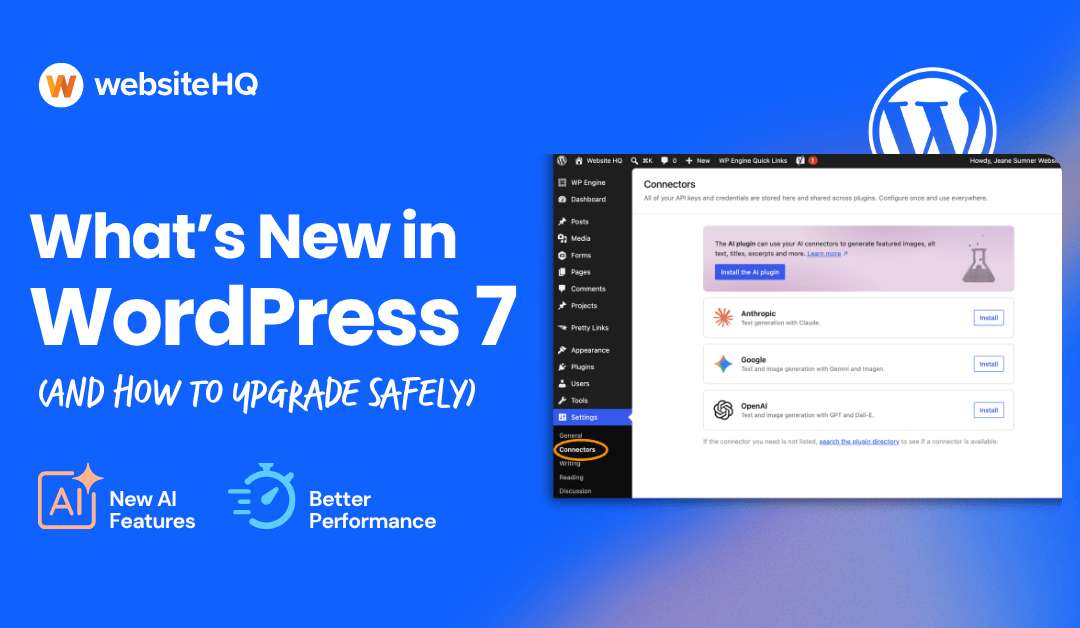
WordPress 7 “Armstrong” shipped on May 20, 2026. The headline change is a native AI Connectors screen, but there’s also a rebuilt admin dashboard and a long list of block editor improvements worth knowing about. Here’s what’s actually useful for a small business owner, and the exact way to update without breaking anything.
WordPress 7’s top features are native AI Connectors (OpenAI, Google, Anthropic), a rebuilt admin with a Cmd+K palette, new Breadcrumbs and Icon blocks, and color-coded visual revisions. To upgrade safely: back up everything, test on staging, then confirm plugins and PHP are ready before going live.
We’ll walk through what each feature actually does for your business, why real-time collaboration didn’t make this release, and the six-step upgrade sequence we use on client sites. If you’d rather have us handle the update for you, you already know how this story ends.
The four WordPress 7 features that actually matter
WordPress releases tend to ship dozens of small improvements alongside one or two big ones. Armstrong is the same. Here are the four changes that will show up in your day-to-day work.
Native AI Connectors
There’s a new screen in your dashboard called Connectors. It sits under Settings and gives you one place to plug in your OpenAI, Google, or Anthropic API key. Any plugin built on the new WP AI Client SDK can then use that connection without you having to enter the same key in five different plugin settings panels.
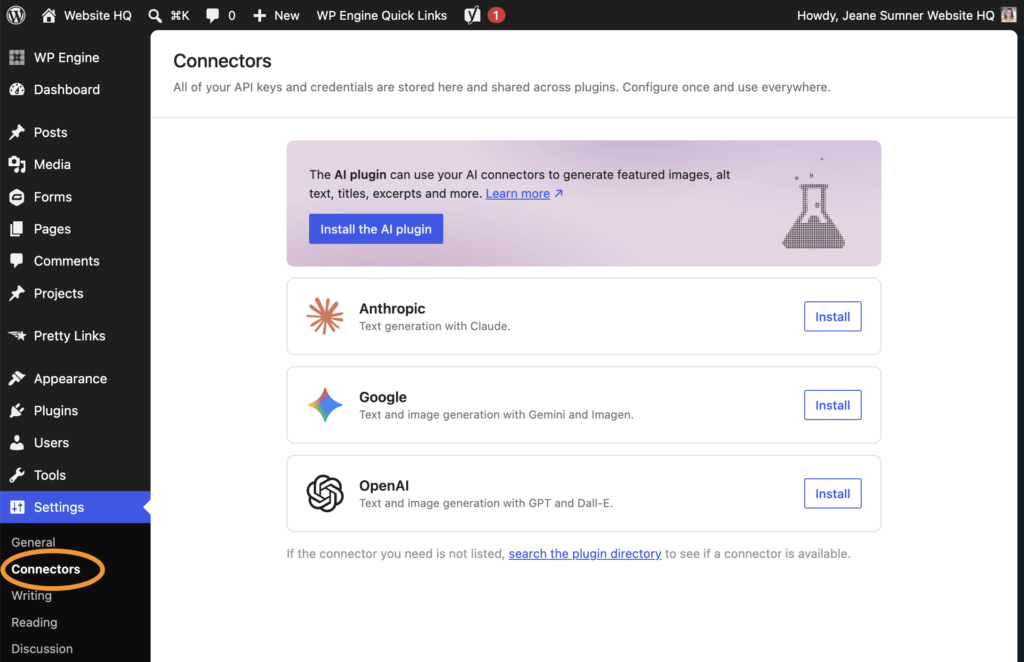
For most small business owners, this matters in a few practical ways. AI content plugins, SEO assistants, image generators, and chatbot tools have been each rolling their own API key management for two years. That sprawl is over. One credential, managed in one place, used everywhere. If you switch providers later, you change it once. (Search Engine Journal has a clear breakdown of the architecture.)
The Connectors screen also gives you a visible audit trail. You can see which plugins are using your AI connection, which is the kind of thing you want to know if you’re paying per-token and watching your usage.
Rebuilt admin dashboard and Cmd+K palette
The admin got a real refresh. New color scheme, smoother screen transitions, and a command palette you can open from anywhere with Cmd+K (or Ctrl+K on Windows). Start typing what you want to do, the palette finds it.
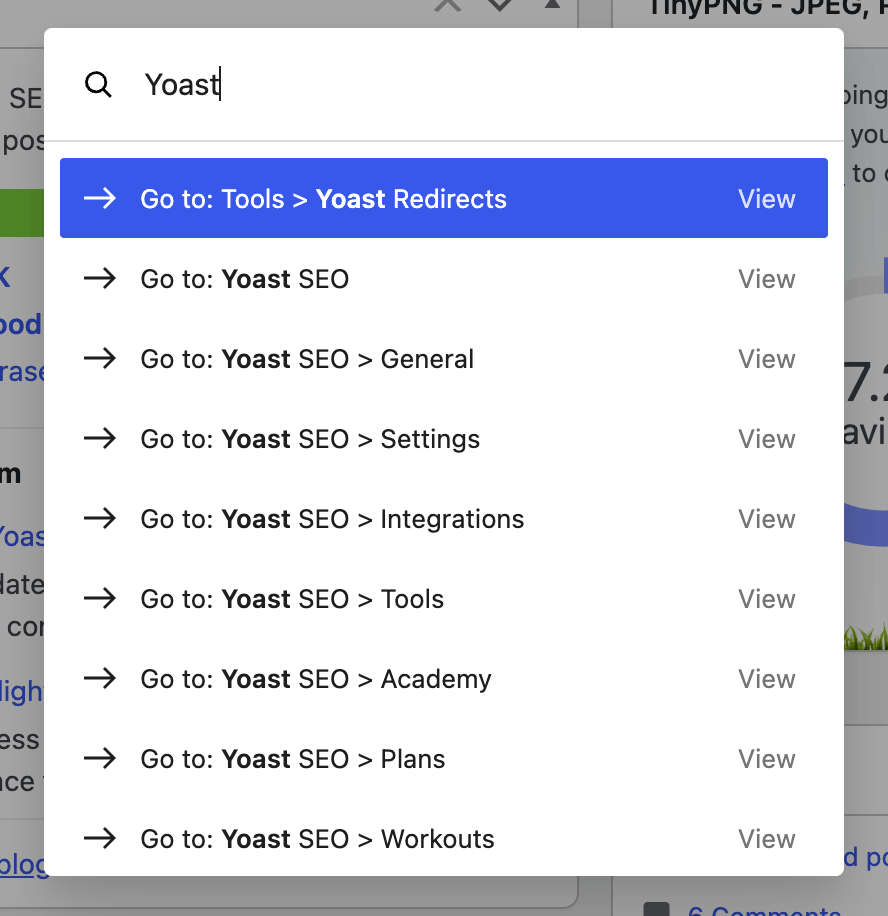
If you’ve used the Cmd+K shortcut in Notion, Linear, or Slack, it works the same way. Need to jump to your Posts list, or open Yoast settings, or create a new page? Cmd+K, type a few letters, hit enter. For anyone who lives in the admin every day, this saves a lot of clicks.
New blocks: Breadcrumbs, Icon, and a smarter Gallery
Three block editor additions worth flagging:
- Breadcrumbs block. Native, dynamic, no plugin required. It generates the path from your homepage to the current page automatically. This is the kind of thing Yoast and Rank Math have done for years; now it’s in core and works inside the Site Editor.
- Icon block. A library of SVG icons you can drop into any post or page. Accessible markup by default. Replaces a half-dozen “icon picker” plugins.
- Gallery lightbox slideshow. The existing Gallery block now supports a real lightbox slideshow out of the box. Cover blocks also got video background support.
One important caveat: these are improvements to the native WordPress block editor (also called Gutenberg). If your site is built with a page builder like Elementor, Divi, or Beaver Builder, your page-builder editor is doing its own thing on top of WordPress and these new blocks won’t show up there. You’d see them in the standard WordPress post editor, but not inside the Elementor or Divi canvas. Talk to your developer about whether your page builder plans to mirror any of these.
None of these are game-changers on their own. For sites running the native block editor, they let you remove three or four plugins, which is always a win for security and performance.
Visual revisions
This one is small but lovely. The Revisions screen used to show you a side-by-side HTML diff that nobody enjoyed reading. WordPress 7 replaces it with a single-column visual comparison that renders the post the way it looks when you’re editing.
Changes are color-coded. Yellow for modified content, red for deletions, green for additions. A sidebar lets you click through each change. If you’ve ever asked “wait, what did I change three drafts ago,” this is the answer. (WPBeginner has good screenshots.)
More info
The feature that didn’t make this release
Real-time collaboration, the much-anticipated multi-user editing feature, was pulled at the last minute and pushed to a future release. The core team flagged race conditions and memory issues during fuzz testing. The official WordPress 7.0 release announcement confirms the delay.
This was the right call. A half-working multiplayer cursor is worse than no multiplayer cursor. If your team needs collaborative editing today, Google Docs to WordPress export is still the cleanest workflow.
How to upgrade to WordPress 7 safely
This is the sequence we use on every Site Care Plan client site. It’s not glamorous. It works.
- Wait a few days. You already have, depending on when you’re reading this. Most major releases get a quick patch in the first week. Anything urgent gets caught fast.
- Take a full backup. Files and database, both, stored somewhere off your server. UpdraftPlus, BlogVault, Solid Backups, or your host’s snapshot tool all work. Then confirm the backup actually exists and contains recent data. A backup you haven’t checked is not a backup.
- Update on staging first. If you don’t have a staging environment, your host almost certainly offers one with a button. Use it. Clone production, apply the WordPress 7 update there, click through everything that matters.
- Check your plugins before you touch production. The high-risk ones are anything that adds columns or filters to Posts, Pages, or Media list views, or anything that touches the block editor. Yoast, ACF, WooCommerce, Gravity Forms, WPML, and WP Fusion all shipped Armstrong-compatible releases ahead of launch. Anything custom-built, test carefully on staging.
- Confirm your PHP version. WordPress 7 requires PHP 7.4 at minimum. WordPress.org recommends PHP 8.3 or higher. Your host can flip that in cPanel or their control panel. If you’re still on PHP 7.2 or 7.3, the update will be blocked until you upgrade.
- Smoke test after the update. Click through your homepage, contact forms, and checkout if you sell things. Open the new AI Connectors screen and have a look around. Check that scheduled posts still go out and that your forms still email you.
That’s the whole sequence. Boring on purpose. Boring is how we make the Internet safer, one WordPress website at a time.
Should you upgrade right now, or wait?
Short answer: wait one or two weeks if your site brings in revenue, update sooner if it doesn’t.
The longer answer is that 7.0 is a major release with a new admin and a new AI subsystem. Even with thorough QA, the first round of bug reports always comes from real-world sites running unusual plugin combinations. A 7.0.1 patch is almost certain inside the first two weeks. If your site is your storefront, your booking system, or your lead engine, there’s no prize for being first.
If your site is informational and traffic is steady, the new features are genuinely worth getting into your hands sooner. The AI Connectors and the Cmd+K palette are the kind of changes you stop noticing because they just work.
Where Website HQ comes in
Most of our Site Care Plan clients won’t have to think about any of this. We test on staging, run the update during a low-traffic window, smoke test, and tell you it’s done. The whole conversation usually fits in one email.
If you’re not on a Site Care Plan and you’d rather not touch this update, that’s exactly what we’re here for. We can run the upgrade on your site by the end of the week, including the backup, the staging test, the plugin compatibility check, and the smoke test. Book a call and we’ll take it from there.