
Updated March 2026 | Originally published March 2023
Key Takeaways
- Choosing the wrong WordPress plugin poses security risks, with 91% of site compromises linked to plugins in 2025.
- Define your website’s needs before installing plugins to avoid unnecessary complexity and potential vulnerabilities.
- Check compatibility, particularly the last update date, as neglected plugins may harbor security issues.
- Read reviews carefully, focusing on recent feedback and developer responsiveness, since premium plugins aren't always safer than free ones.
- Evaluate performance impacts and maintain a healthy plugin count to enhance speed and security on your WordPress site.
If you've been running a WordPress website for any length of time, you already know that plugins are what make WordPress WordPress. They let you add forms, booking systems, SEO tools, e-commerce, and dozens of other features without touching a line of code.
But here's what most plugin advice from a few years ago won't tell you: choosing the wrong plugin today isn't just a performance problem. It's a security problem — and the numbers are sobering.
As of 2026, there are more than 61,000 free plugins in the official WordPress.org repository alone. Factor in premium marketplaces and independent developers, and the total ecosystem exceeds 90,000 plugins. That's a lot of options — and a lot of opportunity for things to go wrong.
In 2025, 91% of successful WordPress site compromises came through plugins — not WordPress core, not your theme. Plugins. And more than half of the developers notified of vulnerabilities in their own plugins didn't fix them before the vulnerabilities were made public.
That changes how we need to think about plugin selection. It's not just “will this slow down my site?” It's “Will this get my site hacked?”
Here are six tips for choosing WordPress plugins wisely in 2026.
Tip 1: Define Your Website’s Needs First
Before you install anything, get clear on what problem you're actually trying to solve. This sounds obvious, but it's the step most people skip — and skipping it leads to plugin bloat.
Ask yourself:
- What feature is my website missing right now?
- Is there a way to get this functionality from a plugin I already have installed?
- Do my visitors actually need this feature, or do I just think it would be nice?
- Am I solving a real business problem or just adding complexity?
Every plugin you install is a potential attack surface, a possible compatibility conflict, and something that needs to be kept updated. That doesn't mean you should avoid plugins — they're essential. It means you should have a clear reason for every single one you install.
A good rule of thumb: if you're not sure you need it, don't install it yet. You can always add it later. Removing a forgotten plugin after the fact — especially one that got you hacked — is a much harder conversation.
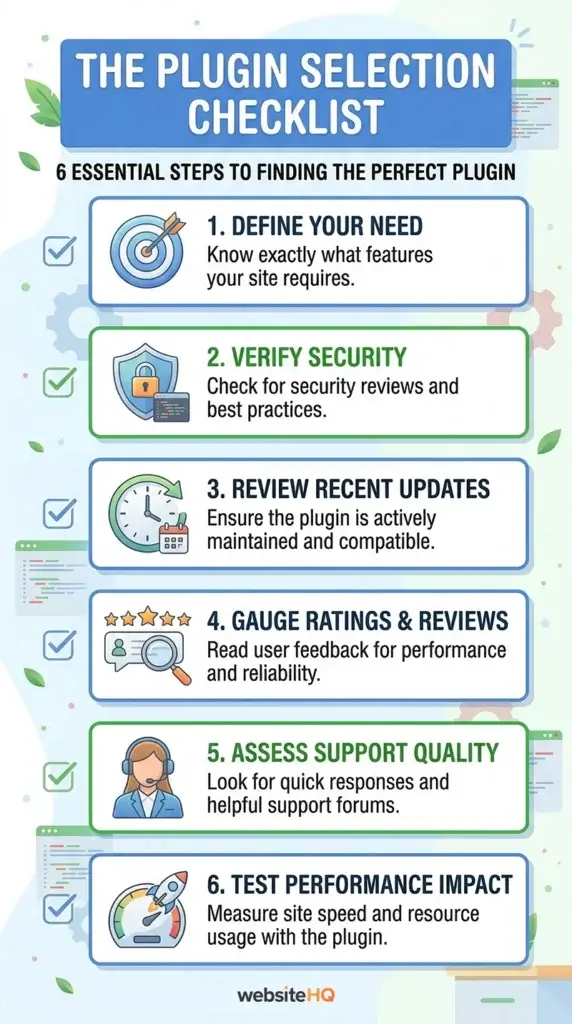
Tip 2: Check Compatibility — Including How Recently It Was Updated
You've probably heard that you should check whether a plugin is compatible with your version of WordPress. That's still true. But in 2026, the more important compatibility question is: when was this plugin last updated?
Here's what to look for before you install anything:
- Does it support your current WordPress version? This is shown right on the plugin's WordPress.org listing.
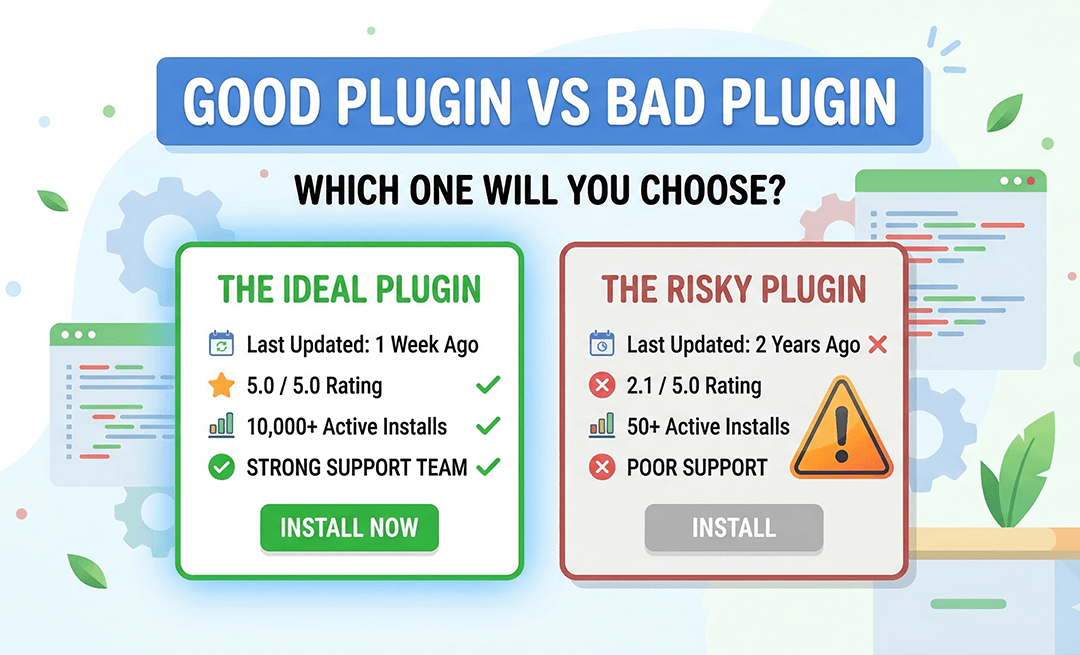
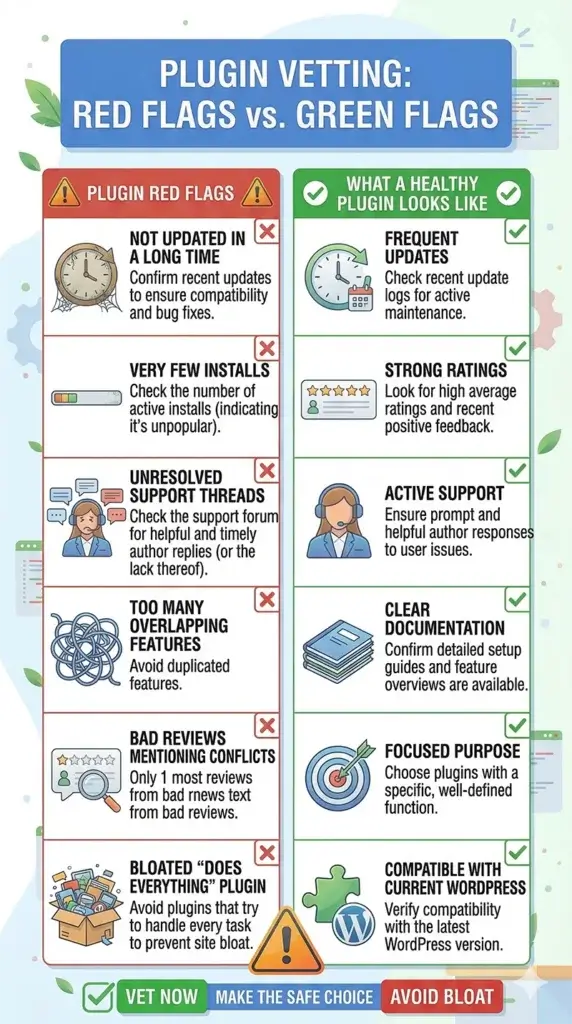
- When was it last updated? A plugin that hasn't been updated in more than 90 days is a yellow flag. Six months or more? That's a red flag.
- Are there known conflicts with other plugins you're running? Check the support forum for recent complaints.
- Does the developer respond to support questions? An active developer is a maintained plugin.
Why does the update date matter so much? Because of what security researchers are now calling “zombie plugins” — plugins that have been abandoned by their developers but are still installed on thousands of sites. In December 2025 alone, over 150 plugins were removed from the official WordPress repository due to unpatched security issues or developer inactivity. The problem? WordPress doesn't notify you when a plugin you're using gets pulled from the repository. Your site keeps running it. The vulnerabilities never get fixed.
If a plugin you're using hasn't been updated recently, go check its WordPress.org listing right now. If it's been closed or removed, that plugin needs to come off your site.
Tip 3: Read Reviews and Ratings — But Know What You’re Looking For
Reviews and ratings are still one of the fastest ways to gauge a plugin's quality, but you need to read them with a specific lens.
Look for:
- An overall rating of 4 stars or higher from a substantial number of users
- Recurring complaints in the reviews — if three different people mention the same issue, it's real
- How the developer responds to negative reviews — this tells you a lot about their support culture
- Recent reviews, not just the overall rating — a plugin with a 4.8 rating built over five years and zero recent reviews could be abandoned
One thing that surprises a lot of people: premium (paid) plugins are not automatically safer than free ones. Research from Patchstack's 2025 security report found that premium marketplace components had three times more known exploited vulnerabilities than free plugins. Paid plugins get less external security scrutiny because researchers don't have free access to the code. So the “you get what you pay for” rule doesn't hold here the way you might expect. Evaluate both free and paid plugins using the same checklist.
Tip 4: Look for Active Support — and Real Developer Accountability
When something breaks — and at some point, something will break — you need to know there's someone behind the plugin who will fix it.
Before installing, check:
- Is there an active support forum on WordPress.org? Look for recent threads and timely responses.
- Is there documentation? A well-documented plugin is a maintained plugin.
- Who built it? A plugin developed by a reputable company with a track record is a safer bet than one from an anonymous developer with no history.
- Is there a premium version with paid support? For mission-critical functionality on a business site, paid support can be worth every penny.
From a security standpoint, developer accountability now matters more than ever. The EU's Cyber Resilience Act, which takes effect in 2026, is beginning to hold software developers — including plugin developers — legally responsible for security vulnerabilities in their products. That's starting to shift behavior in the ecosystem, but we're not there yet. Until then, doing your homework on who's behind a plugin remains your best protection.
Tip 5: Evaluate the Plugin’s Performance Impact
Plugins that slow down your website don't just frustrate visitors — they hurt your SEO and your conversion rate. Site speed is a Google ranking factor, and a slow site is one of the fastest ways to lose a potential customer before they ever read a word you've written.
When evaluating performance:
- Use a staging environment to test new plugins before pushing them to your live site. See if your page load time changes after installation.
- Check the plugin's code efficiency. Well-built plugins load only what they need, only where they need it. Poorly built ones load scripts and stylesheets across your entire site even when they're not being used.
- Watch for plugins that duplicate functionality. Two plugins doing the same job is always worse than one.
- Keep your total plugin count in check. For most business websites, 15–25 plugins is a healthy operating range. A site with 30 well-coded plugins will outperform a site with 5 bloated ones — it's about code quality, not just count.
If you notice a drop in site speed after installing something new, that plugin is the first place to look.
Tip 6: Check for Security Red Flags Before You Install
This tip didn't exist in most “how to choose plugins” guides from a few years ago. It needs to be standard now.
Before installing any plugin, run through this quick security checklist:
- Is it listed in the official WordPress.org repository? Repository plugins go through a basic code review process and are easier to track for updates.
- Does it have a history of security vulnerabilities? Search the plugin name on WPScan's vulnerability database or Patchstack before installing.
- Is the plugin actively maintained? (See Tip 2 — last update date is your proxy for this.)
- Are there any reports of malware or suspicious behavior? A quick search of the plugin name plus “malware” or “vulnerability” can surface problems fast.
- Did you get this plugin from a trusted source? Only install plugins from WordPress.org or a reputable premium marketplace. Plugins downloaded from random websites, nulled plugins (pirated premium plugins offered for free), or plugins shared via file transfer are a major malware vector.
One more thing worth knowing in 2026: If someone builds you a custom plugin using AI tools like ChatGPT or Claude, that plugin sits completely outside the standard security ecosystem. It won't appear in vulnerability databases, it won't receive automatic updates, and it won't go through any review process. Research from 2025 found that approximately 45% of AI-generated code contains security flaws. That doesn't mean AI-built plugins are unusable — it means they need proper code review before they go anywhere near a live site.
FAQs:
For most business websites, 15–25 plugins is a typical and healthy range. That said, the number matters less than the quality. A lean set of poorly coded plugins will cause more problems than a well-curated set of 25. Focus on removing anything you're not actively using — deactivated plugins that are still installed on your site can still be exploited.
Yes — and it's the most common way WordPress sites get compromised. In 2025, 91% of successful WordPress breaches came through plugin vulnerabilities, not WordPress core. Keeping plugins updated and auditing your plugin list regularly are two of the most important things you can do for your site's security.
Your site will keep running the plugin, but it will no longer receive updates. If it was removed due to a security vulnerability, that vulnerability will never be officially patched — leaving your site permanently exposed until you replace or remove the plugin. WordPress does not proactively notify you when this happens, which is why regular plugin audits matter.
Not necessarily — but paid doesn't automatically mean safer. Research from 2025 actually found that premium plugins had more known exploited vulnerabilities than free ones, largely because paid code receives less external security scrutiny. Evaluate both using the same criteria: update frequency, developer responsiveness, ratings, and vulnerability history.
It depends on how it was built and reviewed. AI coding tools can generate functional WordPress code quickly, but roughly 45% of AI-generated code contains security flaws according to 2025 research. AI-built plugins also sit outside the standard vulnerability tracking systems — so if a flaw is discovered later, there's no automatic process to alert you. If you're using a custom AI-generated plugin, have it reviewed by a developer before it goes live, and monitor it manually.
At minimum, weekly. For business-critical sites, consider enabling automatic updates for plugins you trust, and use a staging environment to test major updates before they go live. In 2025, attackers were exploiting newly disclosed plugin vulnerabilities within as little as five hours of public disclosure — so “I'll get to it eventually” is genuinely risky.
Managing your WordPress plugins — and keeping them updated, audited, and secure — is part of what we handle for every client in our Site Care Plans. If you'd rather focus on running your business than worrying about zombie plugins and vulnerability reports, let's talk.

You didn't start your business to become a WordPress technician, yet here you are treating your most critical business asset like a hobby project. While you're spending hours on updates and crossing your fingers that nothing breaks, your competitors are focused on what actually makes money.
👋 I'm Jeane Sumner, and Website HQ doesn't just host your site – we armor it, optimize it, and monitor it so you can get back to running your business instead of fixing it. Book your Site Care strategy call and never worry about your website again.